
Your knowledge base is where you keep the company documents, CVs and finished bids your team reaches for when preparing a tender.
Where to find it
Click the profile button at the bottom of the left sidebar, then "Knowledge Base" — it is also the third tab on the profile page. Inside are three sub-tabs: "Company Assets", "Team CVs" and "Generated Documents".
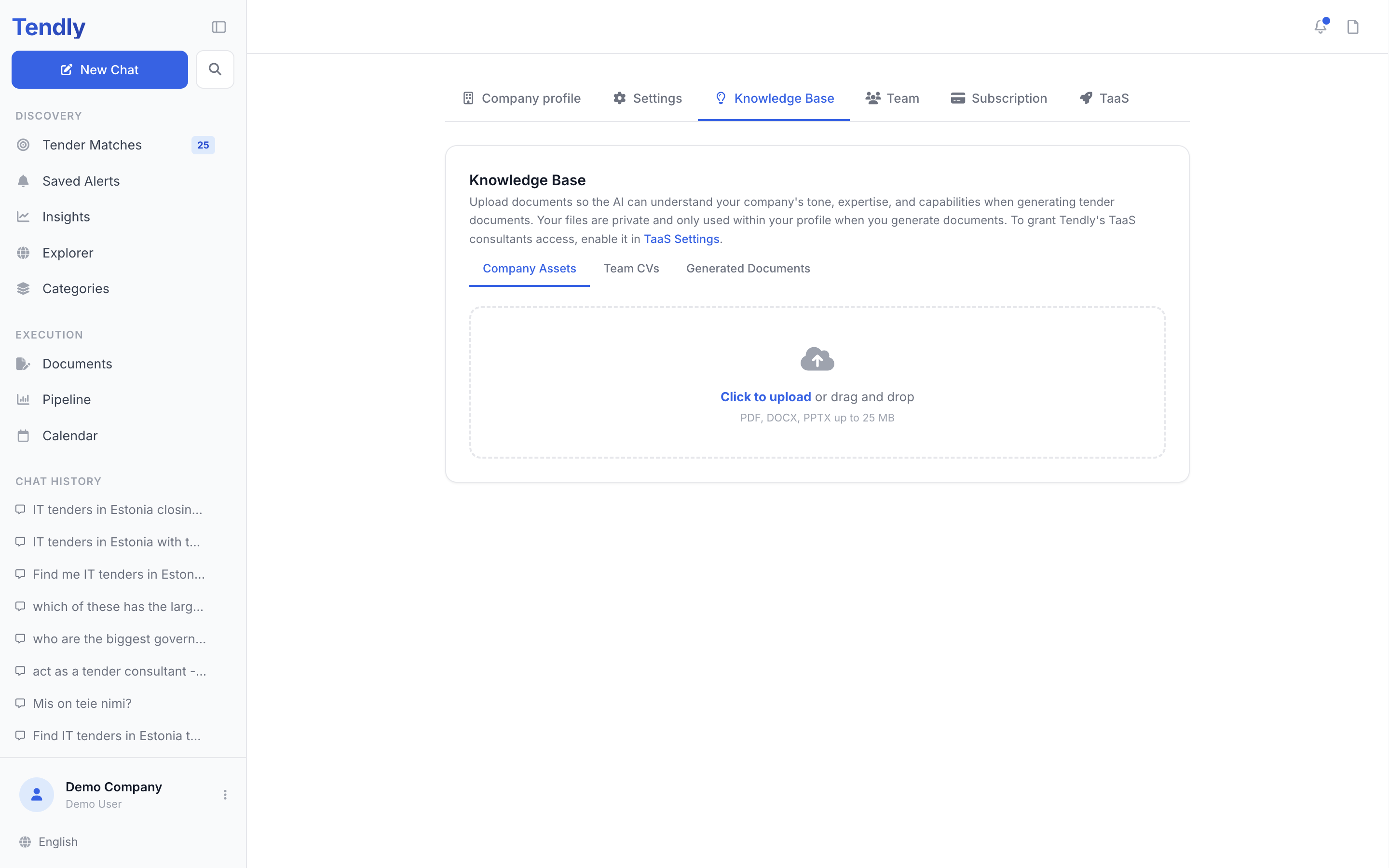
Company Assets
Company background material: capability statements, presentations, certificates, reference lists, past proposals.
- Open the "Company Assets" sub-tab.
- Click the upload box marked "Click to upload" and pick your files. The hint underneath reads "PDF, DOCX, PPTX up to 25 MB".
- Wait for the file to appear in the list below, showing its size and the date it was uploaded.
Each row has a download button and a trash button. Deleting asks "Are you sure you want to delete this file?" before it removes anything.
Team CVs
The same idea for people: the CVs you attach to qualification forms. The "Team CVs" zone reads "Upload team CVs to strengthen bids", and its hint suggests "PDF, DOCX up to 10 MB per file" — the hard per-file limit is the same 50 MB that applies everywhere in the knowledge base. Keeping them here means you are not chasing colleagues for a CV the day before a deadline.
Generated Documents
A table of what Tendly has produced for you, with the columns "Document", "Tender", "Generated" and "Type". It fills up as you create documents in the Documents workspace, and every row can be downloaded again or deleted.
What the uploader accepts
- One upload can carry up to 10 files and 60 MB in total; a single file can be up to 50 MB.
- Uploading the same file twice into the same sub-tab reuses the first copy instead of storing a duplicate.
- The file picker offers PDF, DOCX and PPTX under Company Assets, and PDF and DOCX under Team CVs — those are the formats to plan on.
Who can see your files
These files belong to your organization: anyone you have invited on the "Team" tab can list, download and delete them. Nobody outside your organization sees them.
The one exception is switched on for you. The moment you accept the TaaS terms on the "TaaS" tab, the toggle "Allow TaaS consultants to access Company Profile and Knowledge Base" is already on, so the Tendly expert assigned to your bids can read this material. Turn it off on that tab to withdraw the access.
Using a file in a draft
When you draft in the Documents workspace, your company profile — description, certifications, CPV categories, service areas — is handed to the AI automatically, so you never have to upload that. Stored files are not attached automatically. To use one in a particular draft, download it from this page and add it in the workspace with "Add Documents". The workspace itself is part of the paid plans and needs a verified email address.
Upload your two or three strongest past bids as Company Assets. They are the fastest thing to reach for when a new tender asks a quality question you have answered well before.