
The calendar puts every deadline from your pipeline on one grid, so you can see the week you are about to have.
Open it
In the left sidebar, under "Execution", click "Calendar". It opens on the current month; on a phone it opens on the list instead.
What it plots
Only tenders you saved to your pipeline appear here, and only those that carry a submission deadline. Each one can produce two entries: in "Month" and "Year" view the day shows a deadline count and a coloured dot per type, while in "Week" and "List" view and in the day panel each entry carries a letter badge:
- "S" — the submission deadline. This is the buyer's own date, taken from the tender.
- "Q" — the questions deadline, the last useful moment to ask the buyer for clarification. Tendly estimates it as seven days before submission, and leaves it out when that would land before the tender was published.
The "Q" date is Tendly's estimate, not the buyer's official clarification deadline. Before you rely on it, open the tender and check the date in its own documents.
Colour on the calendar means deadline type, not urgency: submission entries are blue and questions entries are amber, and the legend under the filter bar spells that out.
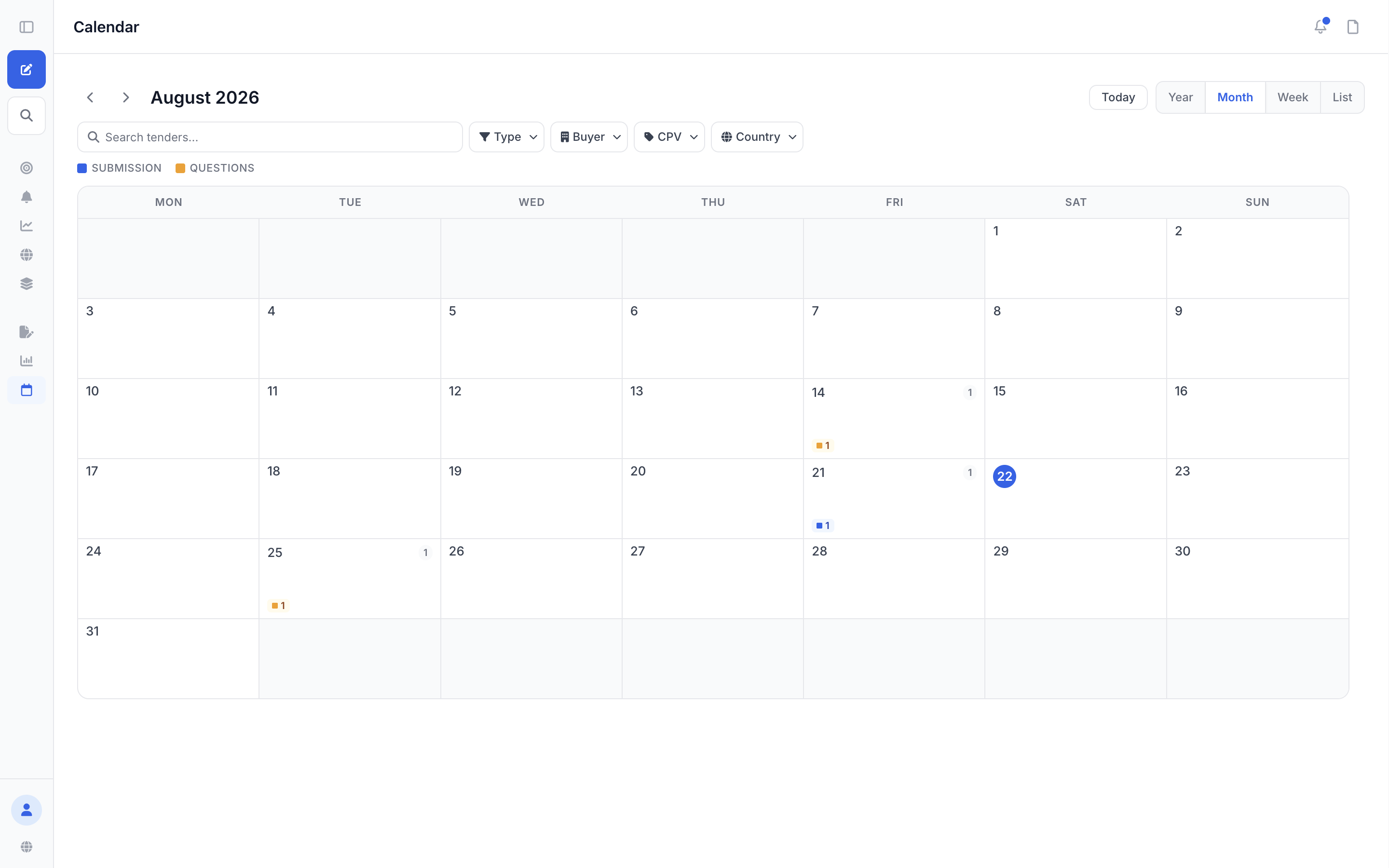
Views and filters
- "Year", "Month", "Week" and "List" sit in the top right. "Today" jumps back to now, and the arrows beside the month label step through months — through years in "Year" view; "Week" view has its own "Previous week" and "Next week" links above the day columns.
- "Type" narrows the grid to "Submission" or "Questions" only.
- "Buyer", "CPV" and "Country" each open a checkbox list; "Buyer" and "CPV" also have a search box inside the dropdown, and each list has its own "Clear". Once a filter is on, a "Clear all" button appears next to the filter chips and resets the lot.
- The search box at the left matches tender names and buyer names.
Click a day that has deadlines to open a panel listing them, then click an entry to open the tender in the detail panel. Days with nothing on them are not clickable, and if your filters hide everything on a day the panel says "No matching deadlines".
Use it to plan a bid week
- Open "Week" view on Monday morning.
- Set "Type" to "Questions" and deal with those first — a questions deadline that passes cannot be reopened, and it is usually the earliest thing that can go wrong.
- Switch "Type" to "Submission" and work forward from the nearest day — the week columns and the deadline counts on each day show you what actually lands this week.
- For anything you will not finish, move the card out of "Drafting" in your pipeline so the board still tells the truth on Friday.
If a period is empty, "List" view says "No deadlines this month" with the hint "Save tenders to your pipeline or run AI matching to see deadlines here.", while the month grid simply has nothing plotted on it — nothing is broken, you just have no saved tenders with a deadline in that period. Add them to your pipeline and any that carry a submission deadline show up here straight away. The calendar is free and uses no credits.