
Every tender opens in a right-hand panel called "Tender Overview" holding the published facts, the attached files, your team's notes and the AI analyses.
Click any tender card - in a chat answer, in Explorer, in Categories or in Tender Matches - or press "Overview" on the card. The panel slides in from the right. "Open source" in its header opens the original notice on the national portal.
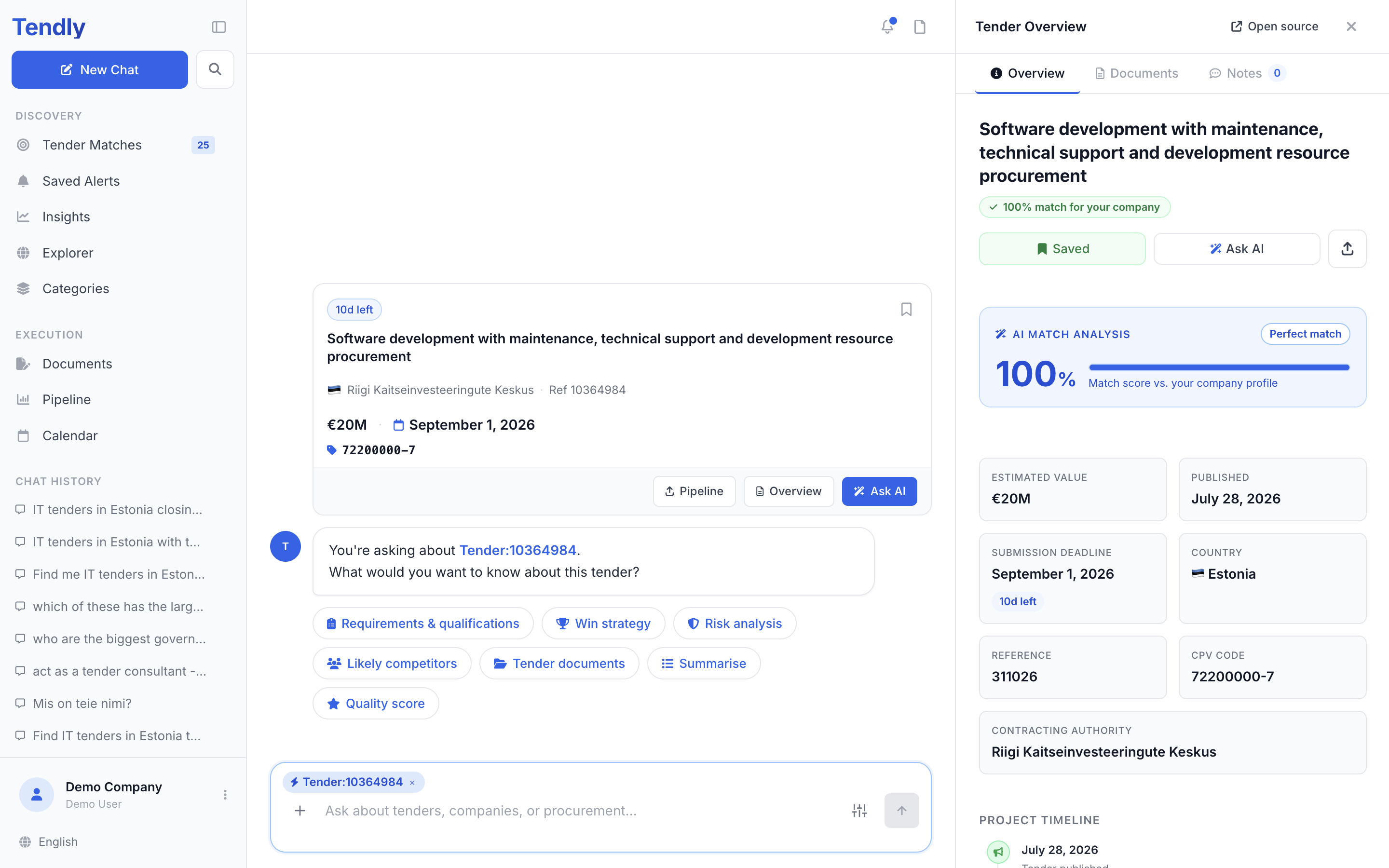
The Overview tab
Under the tender title you get, in this order:
- "Add to pipeline" (a toast confirms it, and the button reads "Saved" the next time the panel opens), "Ask AI" and a share button
- Estimated Value, Published, Submission Deadline with the days left, Country, Reference, CPV Code, NUTS Code and Contracting Authority
- "Project timeline" - published, questions deadline, submission deadline, opening, contract start - showing only the dates the buyer actually published
- a "Quality Score" where one has been calculated, and "Evaluation Criteria" with their weights
- "Description", translated into your language automatically when the tender is written in another one, with "Show original" to flip back (the button reads "Translate" when nothing was translated for you)
- "AI Requirements Summary", "Results" for awarded contracts, "View on source portal" and "Tags"
Values are converted into your preferred currency; hover the amount to see the original figure the portal published.
If the tender reached you through Tender Matches, the top of the panel also shows a "match for your company" chip and an "AI match analysis" block that breaks the score into Capabilities, Financial fit, Geography and Past experience.
Documents and Notes
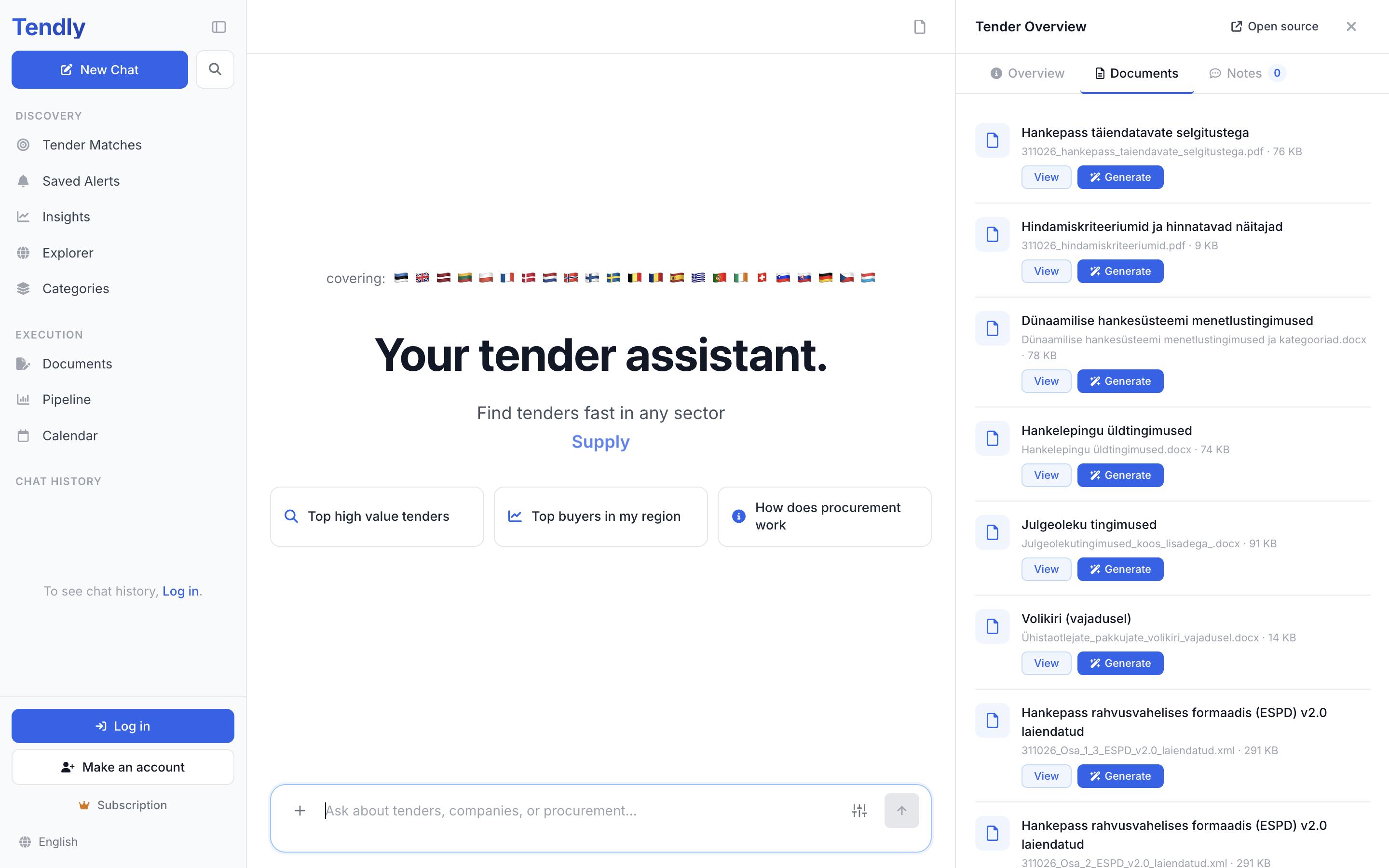
The "Documents" tab lists each attached file with its name and size. "View" opens the file on the source portal; "Generate" takes you to the Documents workspace with that tender already attached.
The "Notes" tab is a thread your whole team shares on this tender. Type in the box ("Add a note... @mention a teammate"), attach files with the paperclip, and click "Post note".
Ask the AI about this tender
Click "Ask AI" and the tender is pinned to your chat with seven ready-made questions:
- "Requirements & qualifications"
- "Win strategy"
- "Risk analysis"
- "Likely competitors"
- "Tender documents"
- "Summarise"
- "Quality score"
When the tender description and the stored document summaries cannot answer your question, the AI downloads the actual tender files from the source portal and reads them - up to three documents per answer. It handles PDF, DOCX, DOC, XLSX, CSV, HTML, TXT, ZIP, 7Z and JSON files. Free-text follow-ups work the same way.
Document reading works across all 28 markets, but individual files on some portals sit behind a supplier login. When a file cannot be retrieved the AI says so and points you at the portal - open it yourself with "View" on the Documents tab.
Sharing a tender
Click the share button, then "Copy link". The link looks like tendly.eu/t/12345 and anyone can open it without an account: they get the tender panel and an AI-written overview. The same popover shares to LinkedIn, X (Twitter), Facebook, WhatsApp and "Email".
Reading a tender is free. "Add to pipeline", notes and "Ask AI" need an account, and each Ask AI question is a chat message - which costs credits on the Free plan only.