
Your pipeline is one board where every tender you decided to work on sits in a stage, so you and your team always know what is moving and what is stuck.
Open the board
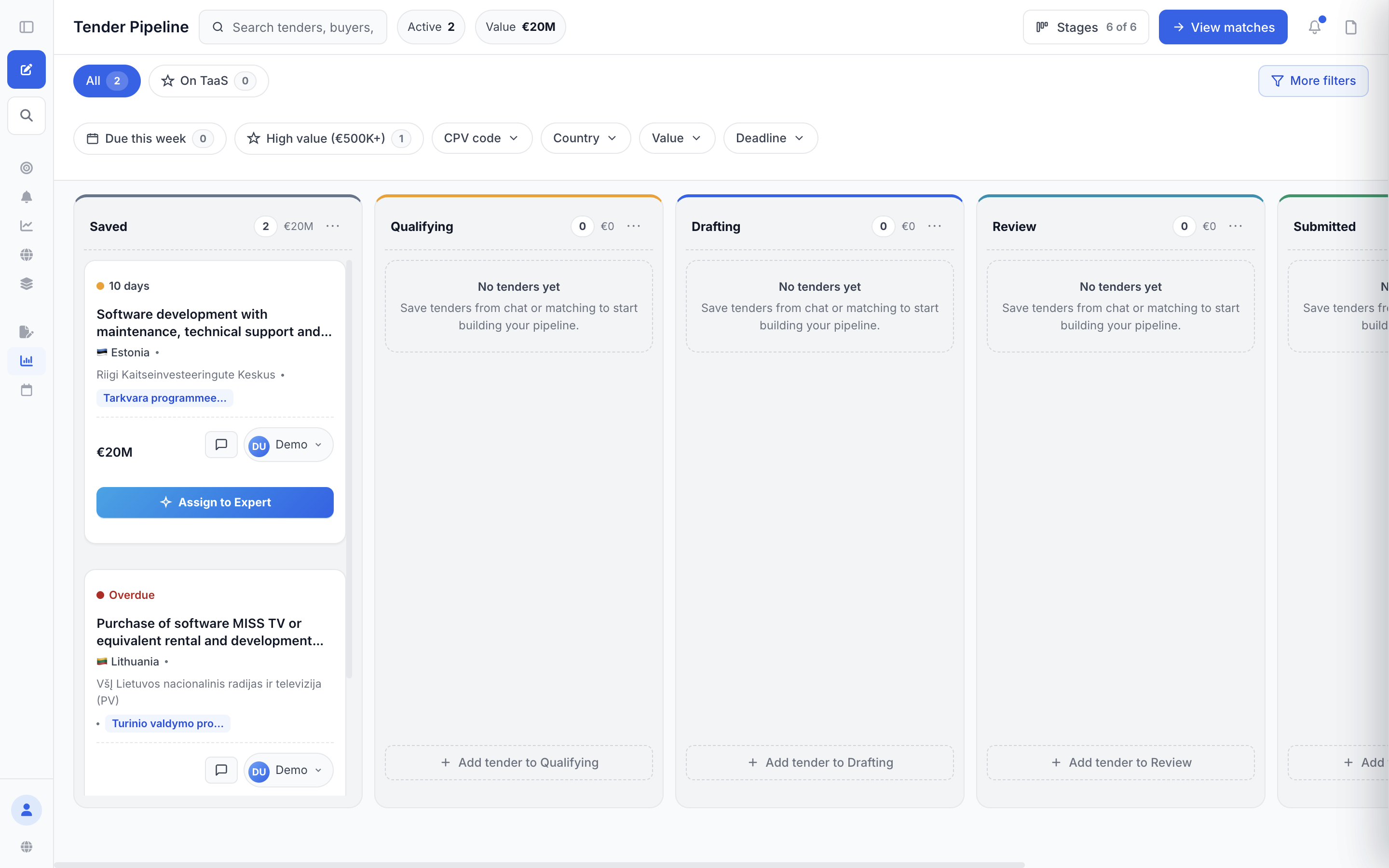
In the left sidebar, under "Execution", click "Pipeline". The board opens with six stage columns and two counters at the top, "Active" and "Value".
Put tenders on the board
Tenders only appear here once you save them, and you can do that from anywhere in the product:
- On a card in "Tender Matches", click the "Pipeline" button in the card footer (or the bookmark icon at the top of the card) — the bookmark fills in and a short "Added to pipeline" message appears.
- In "Explorer", click the bookmark button on a tender row ("Save to pipeline").
- From a chat answer, open the tender and click "Add to pipeline".
- To drop a tender straight into a later stage, click "+ Add tender to Drafting" (or any other stage) at the bottom of that column. It takes you to Explorer with a "Tenders you save now go to Drafting" message, and every tender you save during that visit lands in that stage.
The six stages
- "Saved" — parked, not yet judged
- "Qualifying" — deciding whether to bid
- "Drafting" — writing the bid
- "Review" — checking it before it goes out
- "Submitted" — sent to the buyer
- "Results" — the outcome
Drag a card to another column, or open the card menu (⋯) and pick a stage under "Move to stage". Dragging a card shows a short message with an "Undo" link; moving from the card menu shows the message without it. Cards in "Results" carry a Won / Lost / Appeal toggle, and a lost tender also offers "Appeal with Tendly".
Filter down to what matters
- The search box takes tender names, buyers and CPV codes.
- The chips "All" and "On TaaS" switch between everything and the tenders a Tendly expert is handling.
- "More filters" adds "CPV code", "Country", "Value" and "Deadline" dropdowns; if a Tendly expert is working your tenders you also get "Expert review" and "Decision" (Accepted / Not decided / Rejected). "Due this week" and "High value (€500K+)" are one-click versions of the same thing.
- Each column has its own ⋯ menu with "Sort by" — "Deadline (soonest first)", "Value (highest first)" or "Recently added" — which reorders that column only.
- The "Stages" control hides columns you do not use — "Show all" or "Hide empty".
Notes and teammates
Open a card and go to the "Notes" tab to write for the team. Type "@" to mention a colleague and they get a notification. You can attach up to 5 files to one note, 15 MB per file and 25 MB in total. The card itself shows the note count and an unread badge.
Click the assignee button at the bottom of a card (it reads "Assign" until someone is on it) to hand the card to a colleague, or to the "TaaS agent", described as "Handles drafting & submission". When your company has several people on Tendly, everyone works on the same board — a card someone else saved is a card you can move, note and assign.
The pipeline itself is free and uses no credits. Extra seats for colleagues come with the paid plans — see our pricing page.