
You can hand a finished bid document to the AI and get back precise edits that you accept or reject one at a time.
Set the review up
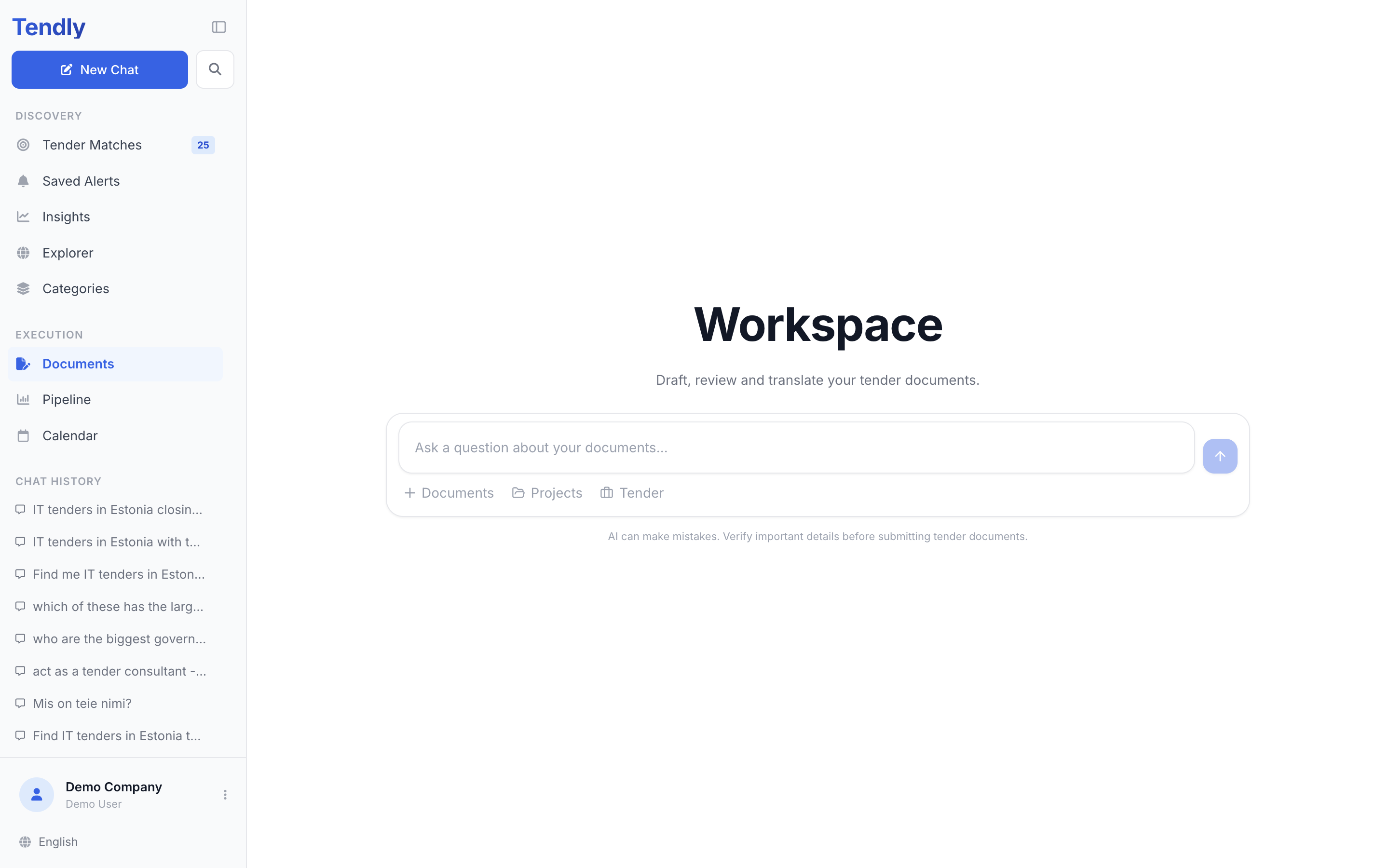
- In the left sidebar, under "Execution", click "Documents".
- Under the message box, click "Documents" (the "+" button), choose "Upload files" and pick the bid document you want checked.
- Click "Tender" and attach the tender you are answering, so the AI checks your text against the buyer's actual requirements rather than a general idea of good writing.
- Ask for what you want — for example "review this against the tender requirements and flag anything that does not comply".
Tracked edits are made inside Word (.docx) files. A PDF can be read and discussed, but if you want changes proposed in the document itself, attach the .docx.
What comes back
Each proposed change arrives as its own card showing the original wording and the replacement. Every card has "Accept", "Reject" and "View", which shows the change in context in the document. When a turn produces more than one change, a row above the cards lets you take them all at once with "Accept all" or "Reject all". When you are done, download the edited file from the download card.
The edits are deliberately small — a word, a figure, a clause — rather than rewrites of whole paragraphs, so you can see exactly what changed and judge it.
Check that the bid covers every requirement
Wording is one thing; coverage is another. With the tender attached, ask for the "Compliance Matrix" by name. You get a landscape Word document that groups every requirement pulled out of the tender documents by category — Eligibility, Technical, Financial, Submission Formalities, Contract Terms — with a five-column table under each heading: Index, Requirement Reference, Requirement, Where Addressed and Status.
Status reads "Met" where your company profile clearly satisfies the requirement, "Gap" where it clearly does not, and "To confirm" where your profile does not carry the information either way. Work through the Gaps and the To confirms before you submit — those are the lines that lose bids on formalities.
If the bid is not written yet, ask for the "Bid / No-Bid Analysis" instead. It walks through fit, eligibility, the evaluation criteria, risks and the effort against the reward, and ends with a clear BID or NO-BID recommendation and the three things to do next.
What it costs, and what it will not do
- Reviews use no credits. The workspace is part of the paid plans — see our pricing page — and needs a verified email address.
- The AI only checks what you gave it. If a requirement lives in an annex you did not attach, it cannot see it.
- It is a careful first reader, not an approval. A person on your side still has to sign the bid off.