
A saved alert emails you when new tenders match the criteria you set, so you do not have to search every day.
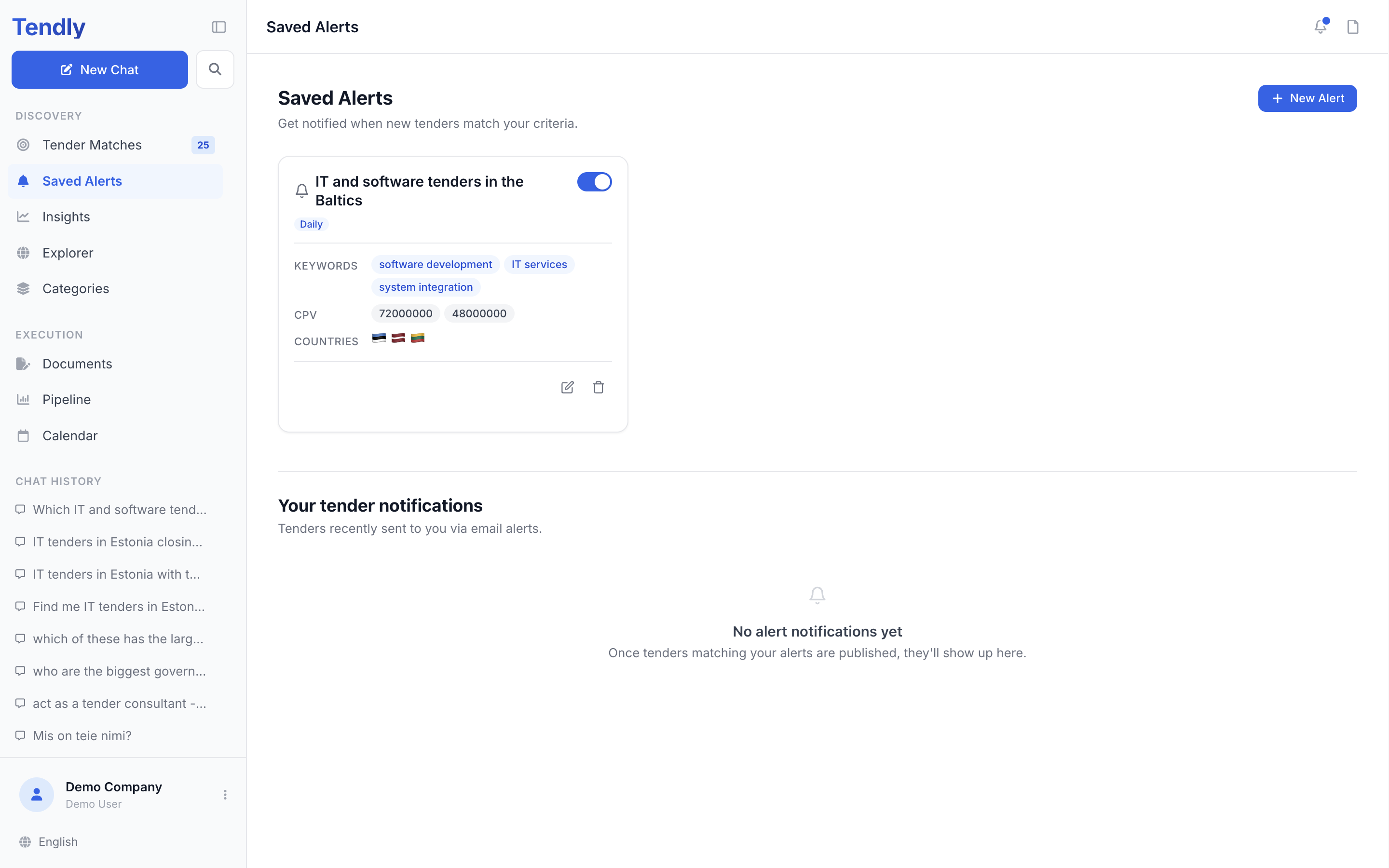
In the left sidebar, under "Discovery", click "Saved Alerts", then click "New Alert" - or "Create your first alert" if this is your first one.
Filling in the form
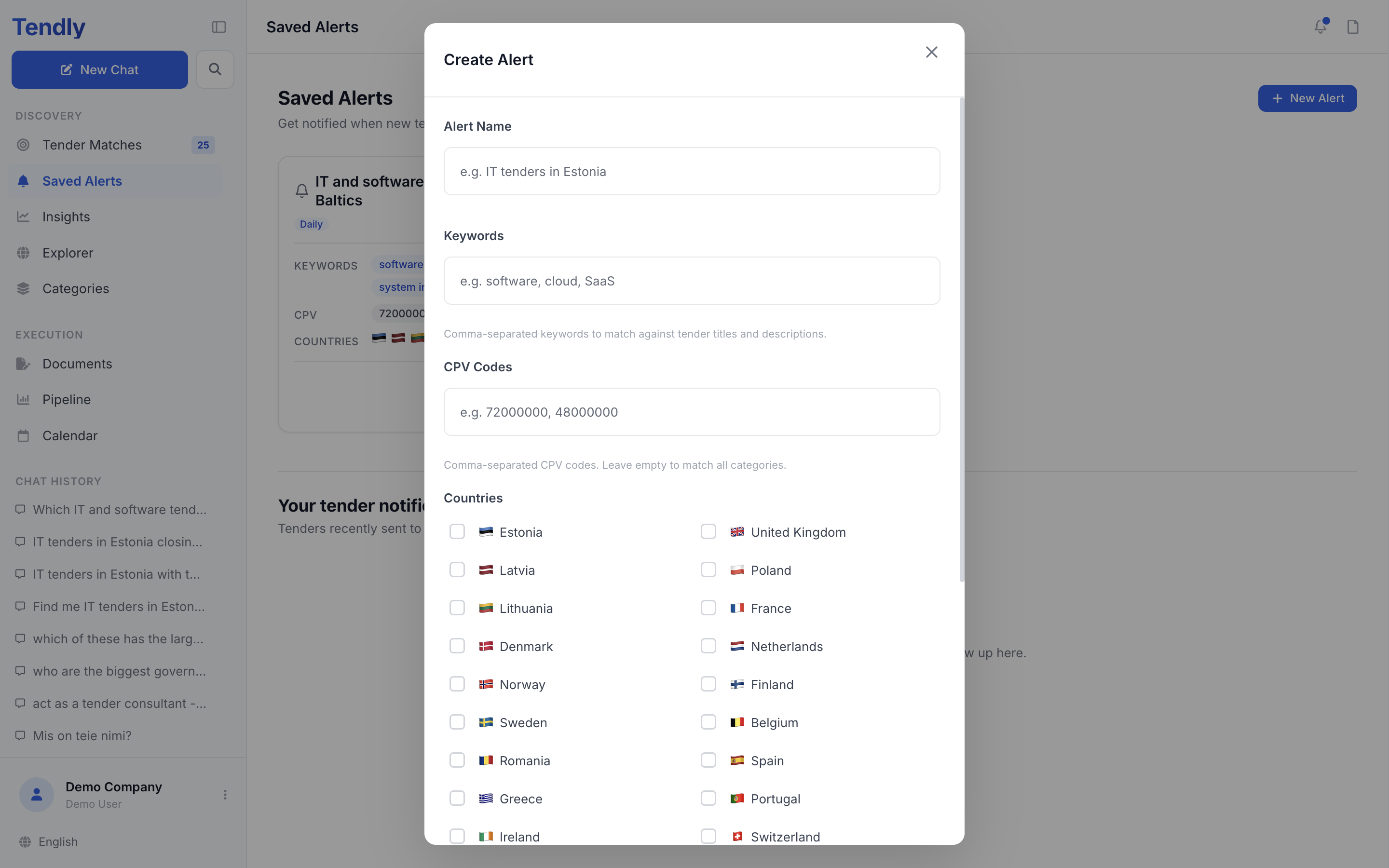
- "Alert Name" - something you will recognise in your inbox, for example "IT tenders in Estonia".
- "Keywords" - comma-separated words matched against tender titles and descriptions, for example "software, cloud, SaaS".
- "CPV Codes" - comma-separated codes such as "72000000, 48000000". Leave it empty to match every category, but an alert needs at least one keyword or CPV code before it can be saved.
- "Countries" - tick the markets you want. On the Free plan one alert covers one country; paid plans can tick several.
- "Value Range (EUR)" - optional "Min" and "Max" so contracts that are too small or too big stay out; tenders whose value is not published always pass the range filter.
- "Notification Frequency" - "Daily", "Weekly" or "Real-time".
- Click "Create Alert".
Creating an alert costs no credits, and there is no cap on how many you keep.
When the emails arrive
Tendly checks your alerts every hour. A "Real-time" alert can send on any check, a "Daily" alert sends at most once a day, and a "Weekly" alert at most once every six days.
Only tenders added to Tendly in the last seven days whose submission deadline is still ahead are considered, and each tender is sent once per alert - so one alert never repeats a tender, though two overlapping alerts can each send you the same one.
The email arrives in your interface language, with a subject line like 3 new tenders for "IT tenders in Estonia". It lists up to ten tenders with their value and deadline, a "View tender" link on each, and a "View all matches" button at the end.
Managing your alerts
Each alert is a card showing its Keywords, CPV and Countries, a frequency badge and "Last notified". From the card you can:
- Flip the toggle to pause an alert without deleting it
- Click the pencil icon, tooltip "Edit alert", to change any field
- Click the bin icon, tooltip "Delete alert", to remove it for good
Your tender notifications
Below your alerts, "Your tender notifications" lists the last 30 tenders that were emailed to you, each with its deadline, the date it was sent and a "View tender" button that opens the tender panel. It is the quickest way to catch up if you have not been reading the emails.
Start broader than feels comfortable. An alert with two or three keywords and no value range shows you what the market really publishes, and you can tighten it after a week.
Alerts need an account, and they match on the words and codes you type. If you would rather have tenders scored against your full company profile, use Tender Matches.