
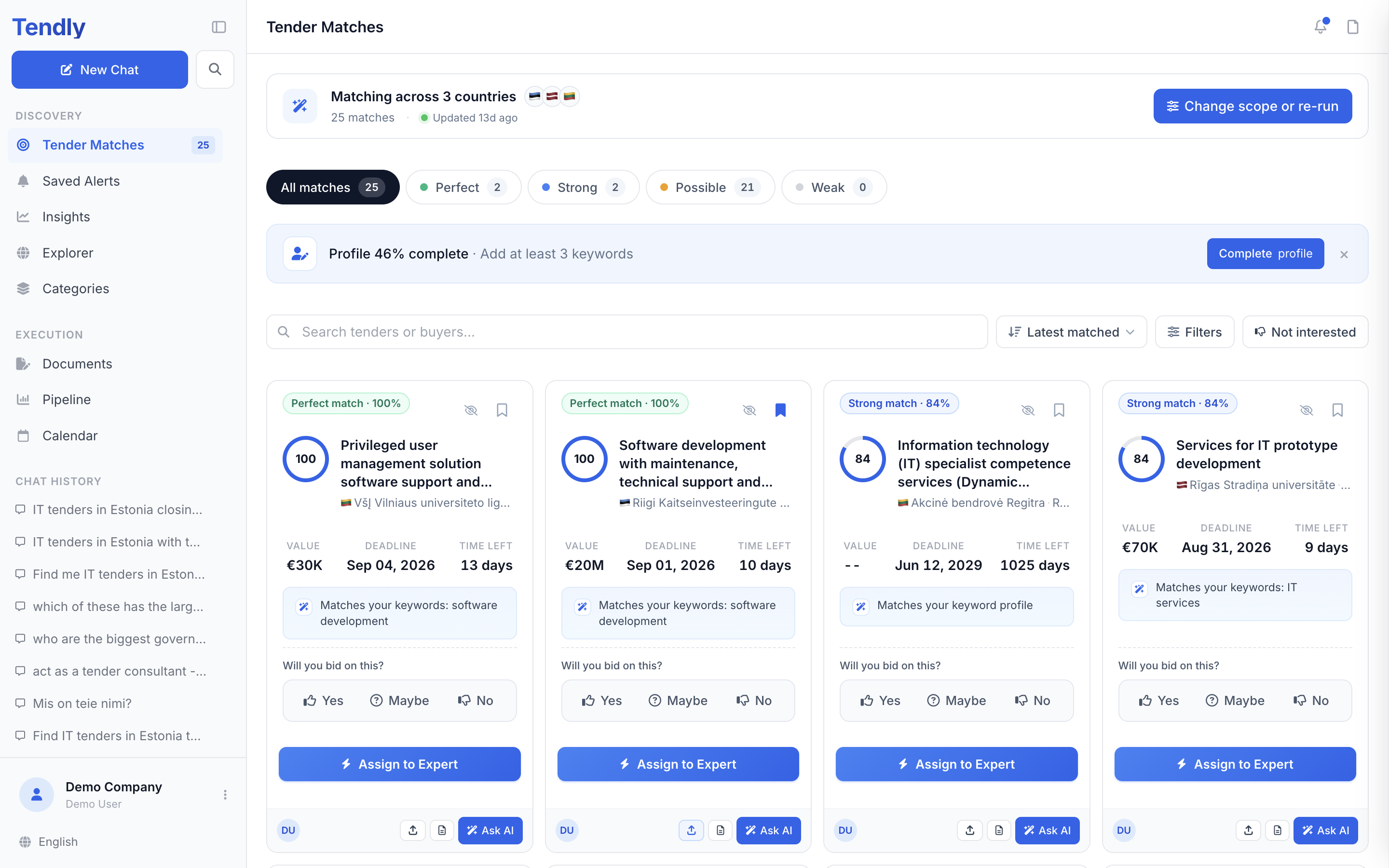
Every card on "Tender Matches" tells you how closely a tender fits your profile and lets you decide what to do with it without leaving the page.
The four tiers
Each match carries a tier badge and a score dial with a number out of 100. The badge and the dial always come from the same tier, so they can never disagree.
- "Perfect match" — 90 and above, usually because several of your keywords appear in the tender title.
- "Strong match" — 75 to 89.
- "Possible match" — 60 to 74, typically a tender that fits your CPV categories but hit few keywords.
- "Weak match" — below 60.
The dial is blue for perfect and strong, amber for possible and grey for weak. Because every candidate has already cleared your CPV filter, scoring starts at 60 — so in practice the Weak tab stays empty.
The key reason line
Under the "Value", "Deadline" and "Time left" facts, each card carries one line explaining the match — for example "Matches your keywords: road maintenance, asphalt" or "Matches your CPV category 45". These lines are templates, not written analysis, and a hit Tendly cannot trace back to a term you actually typed shows the general "Matches your keyword profile" instead. Open the tender for the real detail.
Narrowing the list
The tabs above the grid split matches by tier — "All matches", "Perfect", "Strong", "Possible", "Weak" — each with a live count. Below them sits the filter bar.
- "Search tenders or buyers..." filters by free text.
- The sort menu offers "Latest matched", "Highest match score", "Deadline (soonest)", "Deadline (latest)", "Value (high to low)" and "Value (low to high)".
- "Filters" opens a side panel with "Matched by" (all members or you), "Country", and "Contract value" with "Min" and "Max". Click "Apply" to use them or "Reset all" to clear them.
- "Not interested" switches to the tenders you have set aside.
The grid loads 20 cards at a time; click "Load more" for the next batch.
Acting on a card
- The bookmark icon in the top corner of the card adds the tender to your pipeline — it fills in and a "Added to pipeline" toast confirms it; the labelled "Pipeline" button in the card footer does the same thing — see Tracking bids in the pipeline.
- "Overview" opens the full tender panel: value, deadline, reference, CPV code, evaluation criteria, project timeline and description. Clicking anywhere on the card does the same.
- "Ask AI" carries the tender into chat so you can ask questions about it.
- "Assign to Expert" hands the tender to a Tendly expert. It adds the tender to your pipeline and opens "Assign to a Tender Expert", where you leave your details and your offer and see the success fee before you agree to anything.
"Will you bid on this?"
Each card ends with this question and three buttons.
- "Yes" records the decision and adds the tender to your pipeline automatically — no need to bookmark it as well.
- "Maybe" records the decision and leaves the card in the grid.
- "No" files the card under "No-bid decisions" so it stops crowding your list.
"Hide similar" does something different: it files the card under "Not interested", badged "Teaches AI" — the group Tendly keeps for tenders you told it to stop putting in front of you.
Both groups live behind the "Not interested" chip, together with an editable note headed "What the AI is learning". Any card there can be brought back with "Restore".
Bid decisions are shared across your account, so a colleague's "No" is the "No" you see.