
Research a contracting authority before you bid: how it spends, how much competition it attracts, and who usually wins.
Open a buyer profile
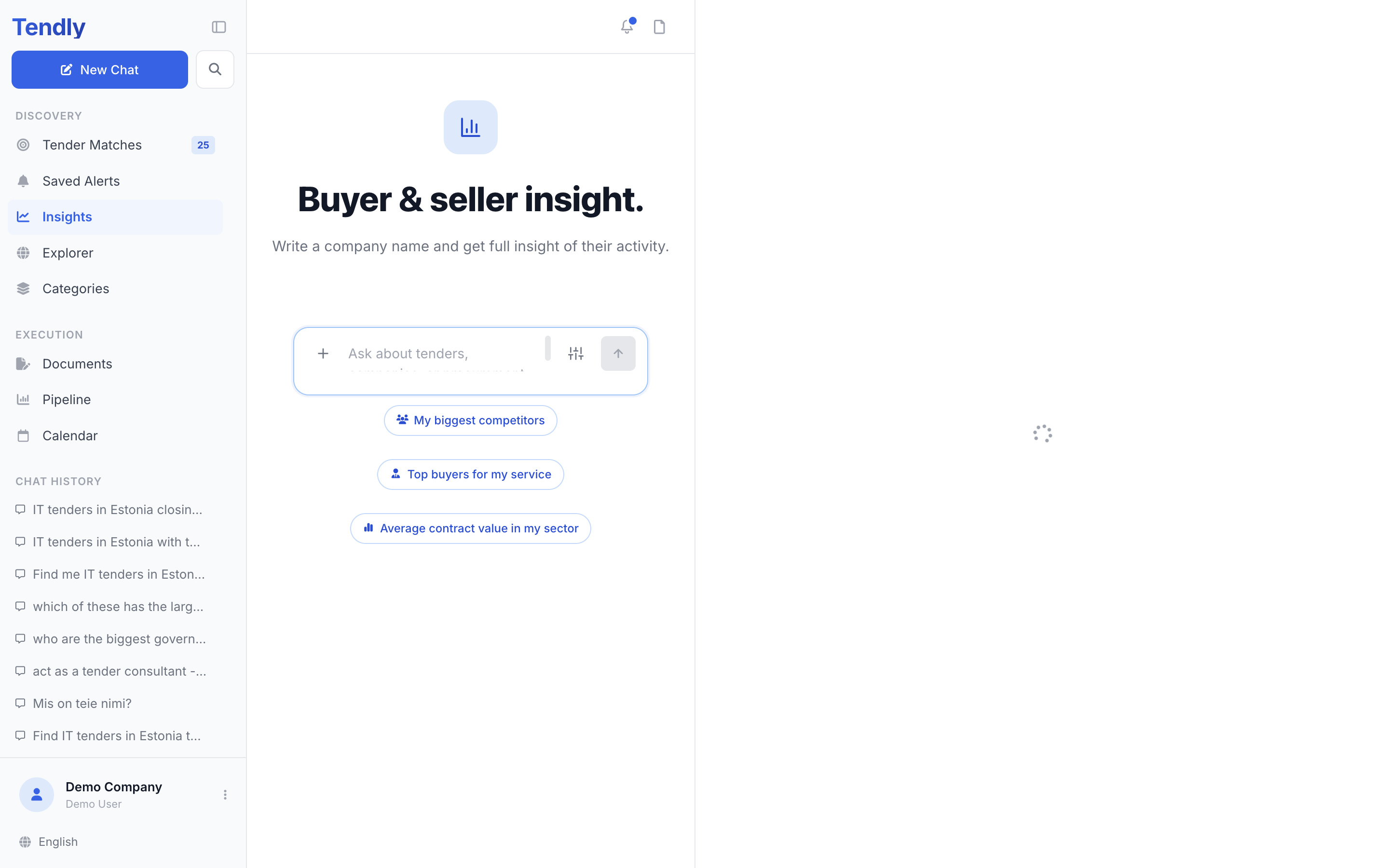
- In the left sidebar, under "Discovery", click "Insights".
- Type the authority's name and send it. You can also click the sliders icon next to the message box — it opens the "Tools" menu — and choose "Buyer analysis", which asks for the name first.
- In the results, pick the card with the BUYER chip and click "Analytics Overview". If the card comes back as SELLER, ask again as "buyers named ..." or use the "Buyer analysis" tool instead — that always opens the buyer view.
Buyer names elsewhere in the app are plain text, not links. Searching the name on Insights is the way in.
What the Overview tab shows
Four figures across the top: "Tenders issued", "Total procurement", "Avg contract value" and "Active tenders" — the last one counts tenders whose submission deadline is still ahead.
- "Procurement patterns" — "Tender Frequency" (tenders per month), "Competition Level" (average bidders, with the range), "Award Success Rate", "Total Bids Received", "Green Procurement" and "EU Funded"
- "Procurement efficiency" — "Contract Compliance", "Emergency Purchases", "Supplier Concentration" (the top supplier's share of spend) and "Processing Time" ("Submission to award", in days)
- "Spend analysis" — "Procurement categories", "Contract types" and "Contract size distribution"
- "Procurement analytics" — "Monthly procurement volume" and "Procurement methods"
- "Top suppliers" — the ten companies that have won the most contracts from this buyer
The "Recent tenders" tab lists their twelve latest tenders, each with an "Active" or "Closed" chip.
Using it before you bid
- Check "Competition Level". An authority that averages three bidders is a very different bid to one that averages twelve.
- Read "Top suppliers". If one name holds most of the contracts, plan for an incumbent — then search that name as a seller to see how they win.
- Compare "Tender Frequency" and "Monthly procurement volume" to see whether this buyer purchases steadily or in bursts, so you know when to have capacity free.
- Look at "Processing Time" to know how long you are likely to wait between the deadline and a decision.
- Open "Recent tenders" and read a closed one — the wording shows you how this buyer writes requirements.
Coverage varies by country
A card only appears when the source portal actually publishes the field behind it, so two buyers in different countries can show different cards. That is deliberate: a measurement Tendly does not have is left out rather than shown as 0%.
In practice, bidder counts are published for almost every award in some markets and for very few in others, so "Competition Level" and "Total Bids Received" appear for some buyers and not for others. Spend figures depend on the buyer publishing an estimated value, so a buyer whose notices omit it shows a tender count but no total. When the Overview has too little behind it you'll see "Detailed analytics aren't available for this organization yet.", and an empty "Recent tenders" tab shows "No recent tenders found".
Buyer analytics needs no account — signed-out visitors get 25 messages in total, and a free account gets 20 a day. Click "Share" in the panel header, then "Copy link", to send the profile to a colleague.