
Ask Tendly a question in plain language and get back open tenders from 28 markets, with the answer written out for you.
Chat is the default screen: open the app and you land on it. From anywhere else, click "New Chat" at the top of the left sidebar.
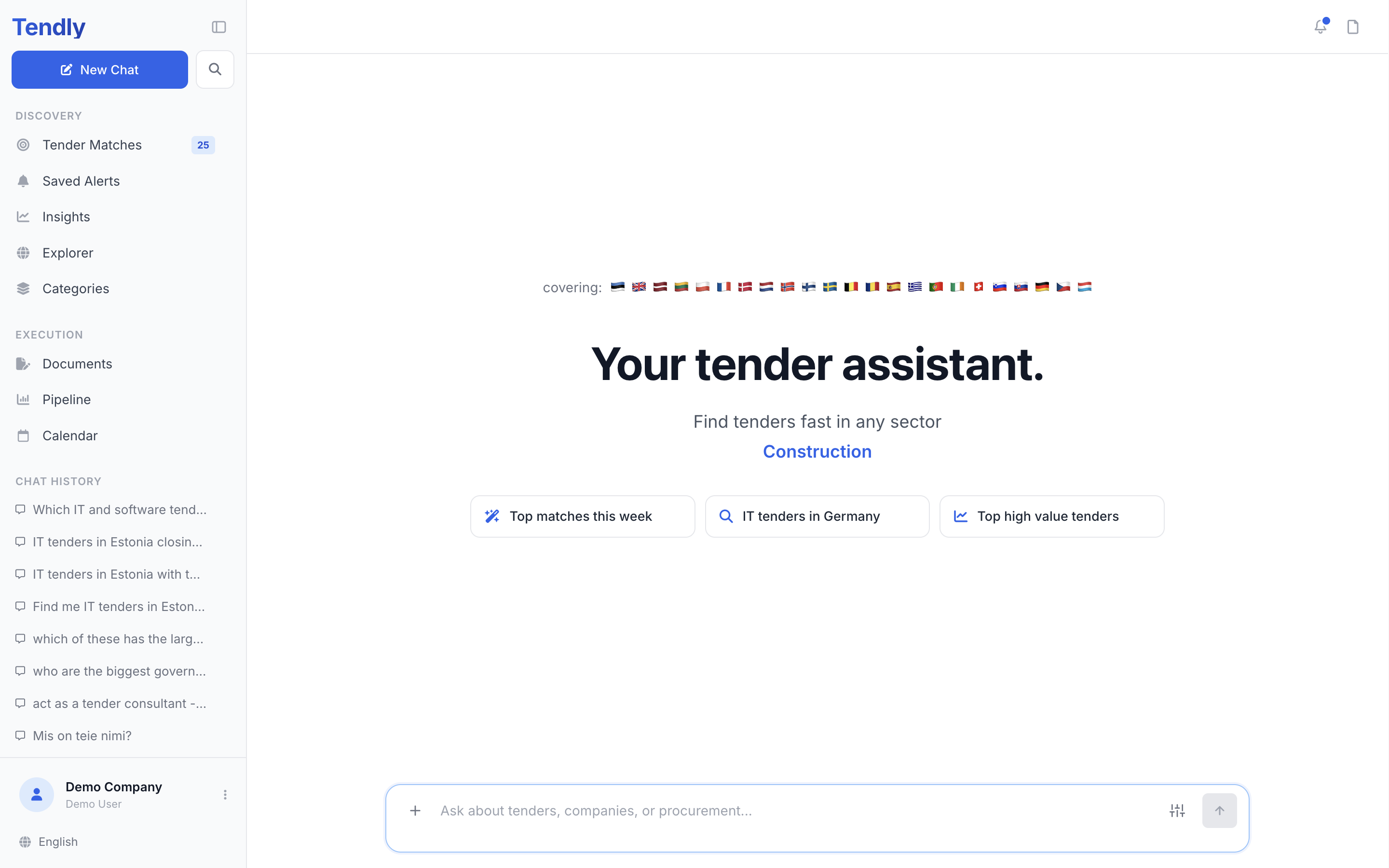
Write the question the way you would say it
There are no search modes or filter toggles to choose first — the whole conversation happens in one composer at the bottom of the screen, with the placeholder "Ask about tenders, companies, or procurement...". Type your question, then press Enter or click "Send".
The assistant pulls country, city, industry, CPV code, value range and deadline window straight out of your sentence, so put those details in the question instead of hunting for filters:
- "IT tenders in Estonia over 500k closing this month"
- "cleaning contracts in Warsaw closing in the next 14 days"
- "road maintenance in Poland and Lithuania with at least 30 days left"
Vague questions give vague answers. Name a sector, a place and a size.
Reading the answer
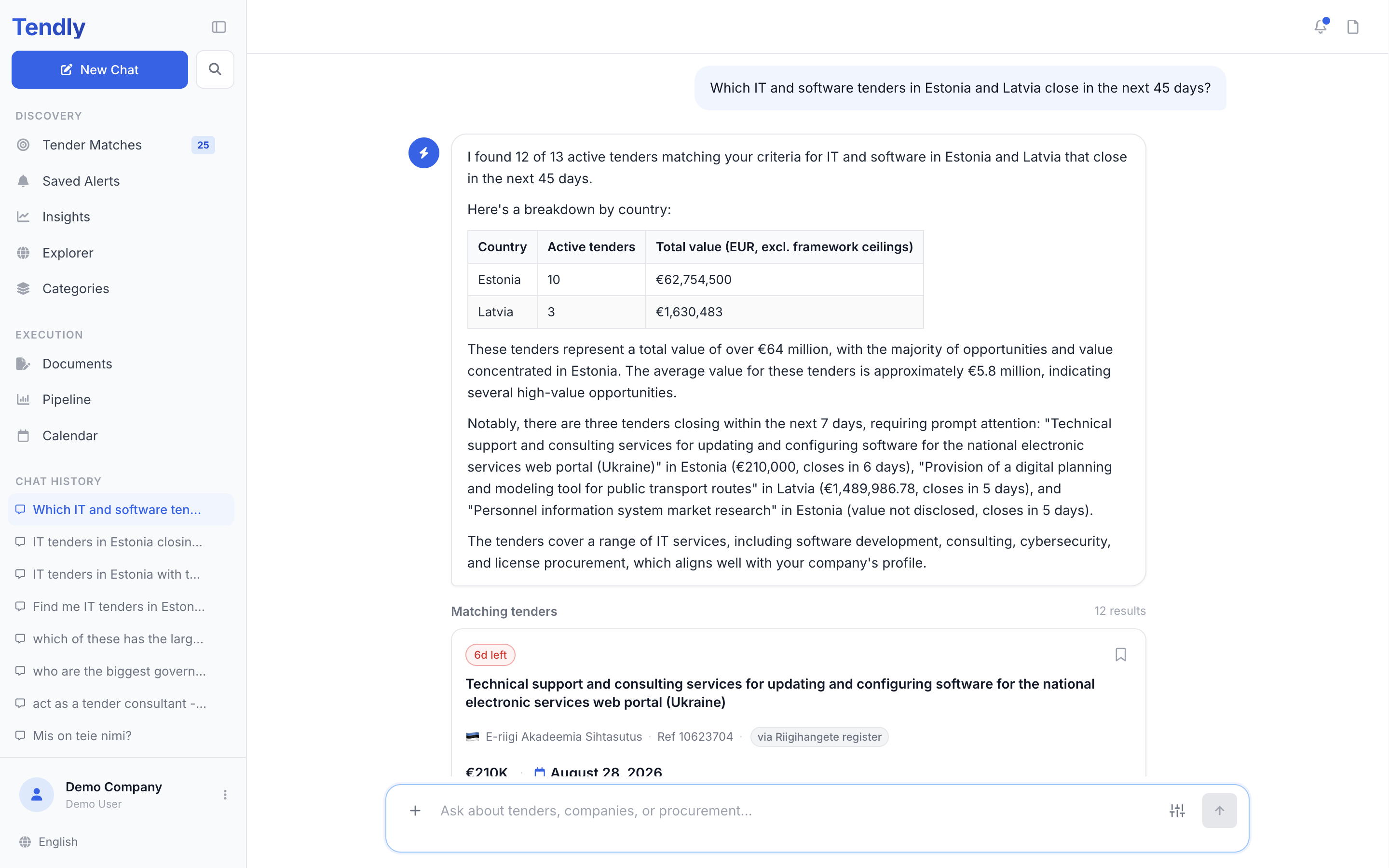
While the answer is being prepared a status line cycles through what is happening: "Processing request", "Gathering relevant data", "Cross-referencing context", "Synthesizing information", "Structuring response" and "Finalizing output". While it is streaming the send button turns into a stop button ("Stop response"); if you stop it, the turn is marked "Answer stopped" and an "Ask again" button appears next to it so you can re-run the same question.
Tenders come back in a block headed "Matching tenders" with the result count. The first five are shown; click "View all N results" to open the rest. Each card carries the title, the buyer, a country flag, value, deadline and the CPV code, plus three buttons:
- "Pipeline" saves the tender to your pipeline
- "Overview" opens the full tender in the right-hand panel
- "Ask AI" pins that tender so your next questions are about it
Follow-ups work as you would expect: "which of those are framework agreements?" keeps the earlier results in view.
Attachments and tools
Click the + button ("Attach files") or drag files onto the page to attach documents — up to 15 MB per file, 5 files and 30 MB in one message. The "Tools" button offers "Seller analysis" and "Buyer analysis".
History and sharing
Once you are signed in, every conversation is saved under "Chat History" in the sidebar, and the magnifying-glass button next to "New Chat" opens a search box with the placeholder "Search your chat history...". The menu on each entry has "Share", "Rename", "Pin" and "Delete". "Share" copies a link anyone can open read-only, showing the banner "You're viewing a shared conversation. Send a message to start your own chat."
Limits and cost
- Not signed in: 25 messages in total.
- Free plan: 20 messages a day, and 3 credits per message — a new free account starts with 20 welcome credits, so that is about six chat answers before you need more credits or a paid plan.
- Paid plans: unlimited messages, and chat never costs credits.
A message with files attached counts as three against your daily allowance, and the message counter reads "{remaining} of {limit} messages remaining". Credits are taken only after an answer actually arrives, so a failed turn is never charged.
What each plan includes is on our pricing page.